
Connect your WhatsApp number连接你的 WhatsApp 号码
Pair the number families already message you on, so every enquiry lands in the system instead of on somebody's phone.把家长本来就在用的号码接进系统,让每一则询问都落在系统里,而不是某个人的手机里。
这篇指南的正文目前只有英文版。标题、摘要与导览已翻译;内文仍在翻译中。
Enquiries arrive on WhatsApp. Connecting the number means they arrive in Hull too — visible to the whole team, attached to a contact, and answerable by the assistant when nobody is at the desk.
It is your ordinary WhatsApp number. Nothing is migrated and nothing changes for the person messaging you.
1. Open Connections
Marketing → Connections — the megaphone in the top bar.
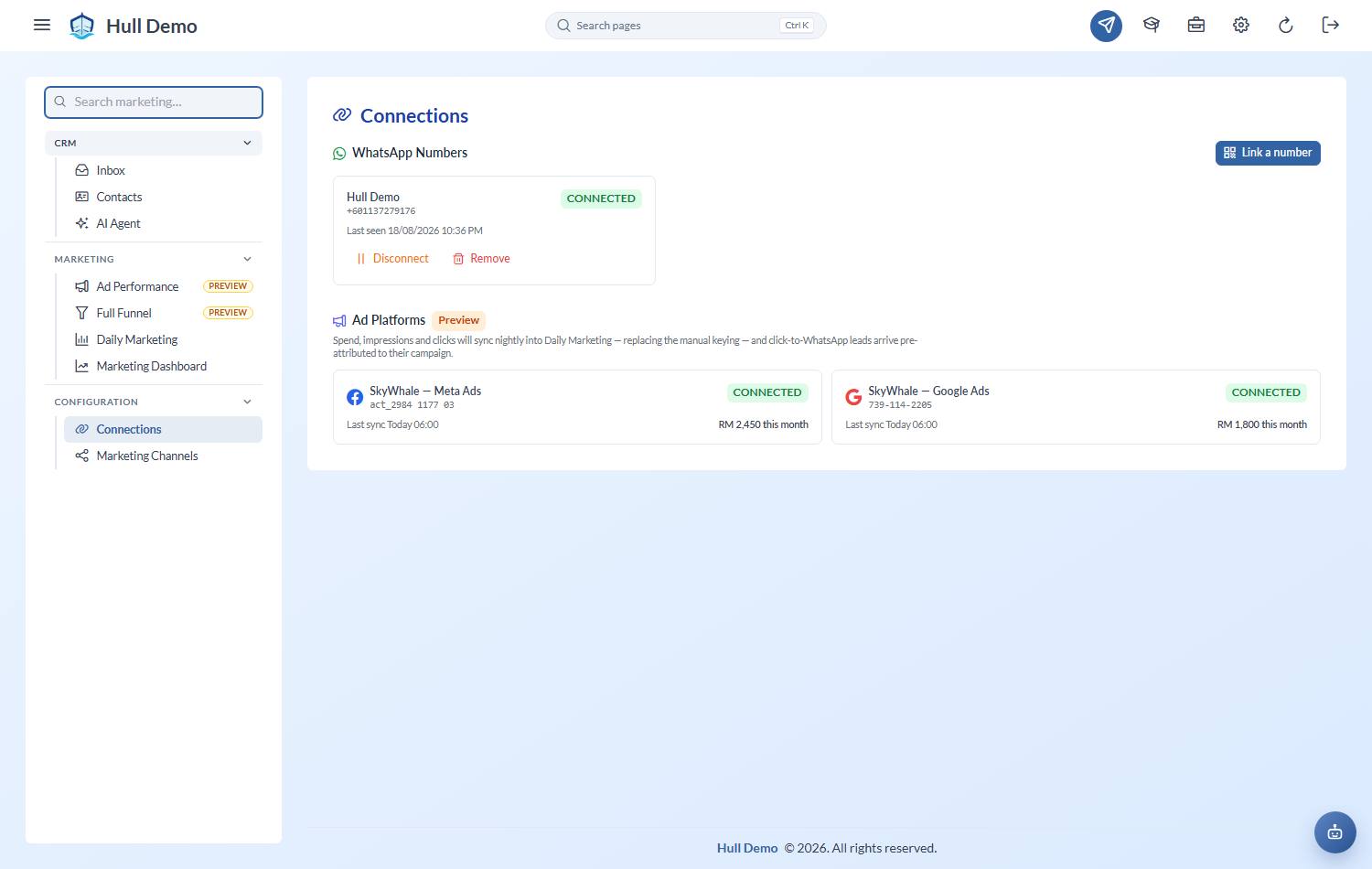
2. Add the number and scan the code
Add the number you want to connect. A QR code appears.
On the phone that owns that WhatsApp number: open WhatsApp → Linked devices → Link a device, and scan the code on your screen.
This is the same pairing WhatsApp Web uses. Hull becomes another linked device on that account.
Re-linking a number you removed
If you delete a number and pair it again later, the old conversations come back to it. The moment the new connection reports which number it is, any earlier record of that number hands its conversations over and retires, so you get one history rather than the same customer sitting in two inboxes.
3. Check the status
The number shows as connected once pairing finishes, with a last-seen time. From then on, messages flow into Inbox.
4. Assign it to a branch (optional, but do it if you have several)
Each number can belong to a branch. Once it does, staff who run that branch — branch admins and heads — see only that branch's conversations. Owners and marketers keep seeing everything.
A number you leave unassigned stays visible to everyone, which is the safe default: nothing hides because somebody forgot a setting.
Pausing and resuming
- Disconnect stops the number without unpairing it. The socket closes; the pairing is kept. Use it while you sort something out.
- Reconnect resumes a disconnected number — no new QR needed. It only asks for a fresh code if the number was logged out from the phone.
What to expect once it is live
- Every incoming message is kept, including ones that arrive while you are closed.
- Messages from an ad click carry their source, so you can see which campaign produced the conversation without asking.
- Photos and files are stored, though the assistant does not try to read them — anything with an attachment is left for a human.
- You can still reply from your phone. Hull is a linked device, not a replacement; it records what was said either way — and a reply you send from the handset stands the assistant down on that conversation, exactly as one typed in the inbox would.
- If someone links the same number somewhere else, Hull steps aside rather than fighting over the connection. Reconnect from this page when you want it back.
Related: Work the WhatsApp inbox · Set up the AI agent.