
Set up the AI agent设置 AI 助手
Give the assistant a name, a personality and a list of what it may answer — rehearse it in a private test chat, run it in Suggest while you build trust, then let it reply day or night.给助手一个名字、一种性格,以及一份它可以回答的清单——先在私下的测试对话里演练,再让它日夜回复询问。
这篇指南的正文目前只有英文版。标题、摘要与导览已翻译;内文仍在翻译中。
The assistant answers WhatsApp enquiries the moment they arrive. You are not building a chatbot: there is one agent, and you personalise it and choose what it is allowed to talk about.
Off, Suggest, or Auto-reply
The switch at the top is not on/off — it has three positions:
- Off — the assistant does nothing.
- Suggest — it reads every conversation and drafts a reply for your team instead of sending one. Staff see the draft in the thread, adjust it, and send it under their own name. Nothing reaches a customer that a person did not send.
- Auto-reply — it answers by itself, within the rules below.
Start in Suggest. Run it for a few days, read what it would have said, tighten the personality, then move to Auto-reply once the drafts read like your front desk. The same control appears in the inbox, so owners, branch admins and heads can change gear without coming back to this page.
1. Open the AI Agent page
Marketing → AI Agent — the megaphone in the top bar. Owner only.
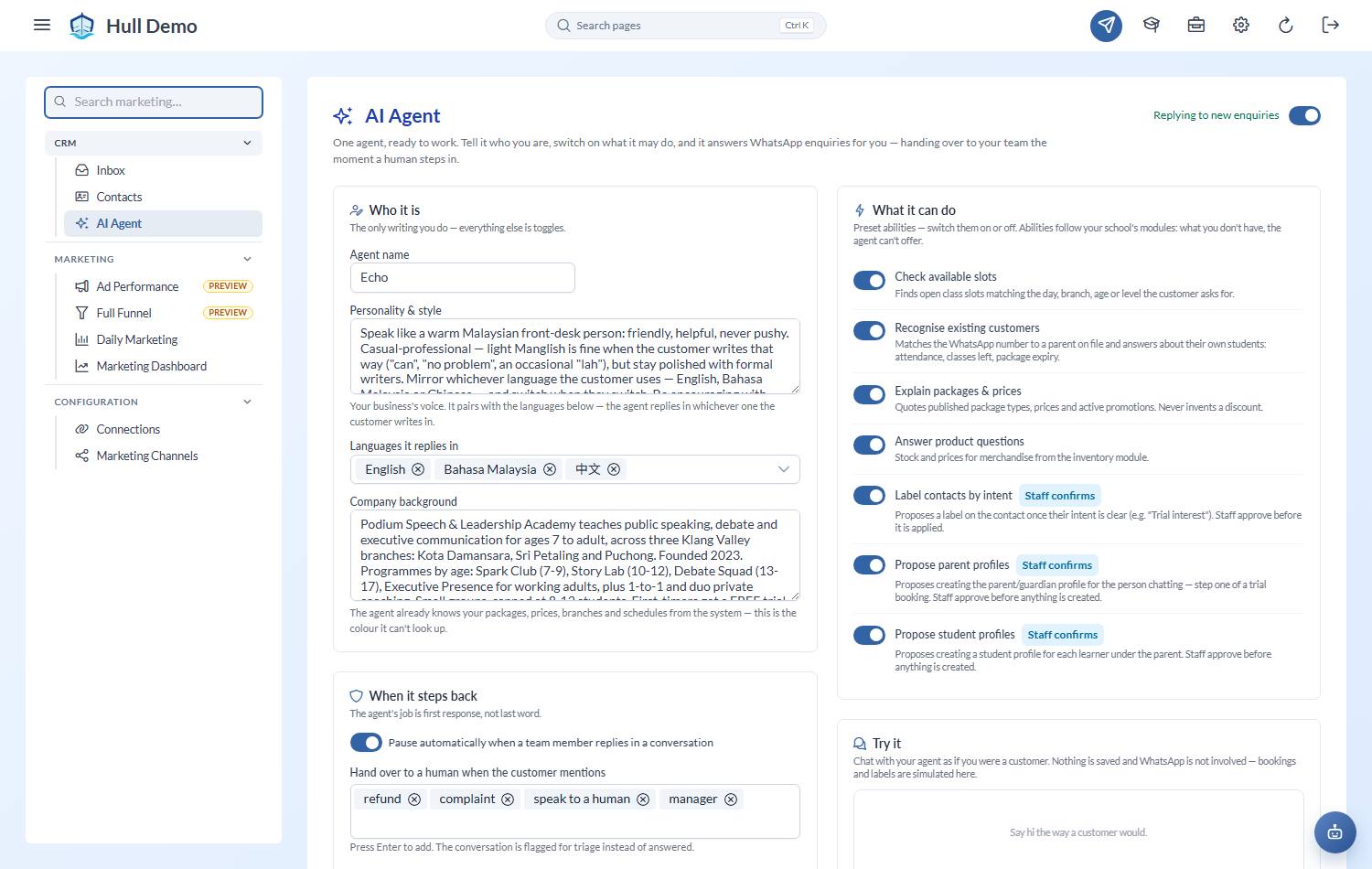
2. Give it a personality
- Name — what it calls itself.
- Personality — how it should sound, in your own words. This is a free-text box, not a dropdown, because "friendly" means something different at a dojo and a music school. Write the real instructions: *"Warm but brief. Mirror the customer's language — reply in Malay if they write Malay. Light Manglish is fine. Never hard-sell; if they hesitate, offer a trial."*
- Languages — which ones it may reply in.
- Background — a few lines about the academy. Worth writing properly: this is what it uses to sound like *your* school rather than a generic assistant.
3. Teach it your procedures — playbooks
Background and personality are the *what*. Playbooks are the *how*: your step-by-step procedures, in your own words, for the situations that matter.
Each playbook has three parts:
- Name — "Trial booking".
- When does this apply — one line: *"a parent wants to book a trial class"*. This is how the assistant knows which playbook to reach for.
- The steps, in order — exactly what your best front-desk person would do.
Every academy starts with a Trial booking playbook already written — a sensible generic version. Edit it into *your* SOP: your questions, your order, your rules. Add more for whatever else has a "right way" at your academy — handling a price objection, a returning family, a transfer between branches.
Keywords for the search box: SOP, procedure, process, script.
4. Choose its abilities
Each ability is a specific thing it may do. Read-only ones answer questions:
| Ability | What it does |
|---|---|
| Check available slots | Finds open class slots by day, branch, age or level |
| Recognise existing customers | Matches the phone number to a family already on your books |
| Explain packages & prices | Quotes published prices and live promotions. It never invents a discount |
| Answer product questions | Merchandise stock and prices, if you have the inventory module |
| Explain levels & progression | Answers *"what will my child learn?"* and *"what comes after this?"* from the level descriptions you have written. On by default |
| Explain terms & conditions | Answers policy questions — freezes, make-ups, refunds — from your own published T&C, citing the section. On by default; switch it off if you'd rather every policy question reach a person |
Then the ones that would create something — these are proposals, never direct writes:
| Ability | What it proposes |
|---|---|
| Label contacts by intent | A short reusable tag — and removing one once it has gone stale |
| Propose parent profiles | A new parent record |
| Propose student profiles | A new child record |
| Allow class booking | A make-up, a schedule change, or a trial slot. It checks the same things your desk does first — package, credits left, the child's level, room in the class |
| Propose package extensions | An extension request, carrying the photos the family already sent in the chat. The owner still approves the request itself afterwards |
| Schedule follow-up messages | A message queued for a named day, when someone says *"get back to me Thursday"* |
Nothing on the second list happens without a staff member confirming it. See Approve what the agent proposes.
5. Tell it about your academy
The assistant knows your branches, class types, levels and packages by name. A name is not an answer. Asked *"what actually happens in a Foundation class?"* or *"what is the Klang centre like?"*, a name gets you a deflection at best and an invention at worst.
So write the answer once, in your own words, and it will use it. There is a Description box on each of four Configuration screens:
| Screen | What to write | Roughly |
|---|---|---|
| Branches | What the place is like — parking, the pool, which floor | Short |
| Class Types | What a session is like, who it suits, what they do | Short |
| Levels | What a child can do at this level and what comes next | Longer |
| Package Types | What the family is buying and who it suits | Longer |
Branch and class-type descriptions are sent with every message, so they are kept short. Level and package descriptions are only fetched when somebody asks, so they can run longer. Each box shows a character count: past it, everything you typed is still saved, the assistant just reads the first part. Put the important sentence first.
Hiding a branch from new enquiries
On Configuration → Branches, each branch has Offer this branch to new enquiries. Turn it off for a site that is full, closed, or private — a school programme you run under contract, say.
A closed branch drops out of the branch list, out of the slot search, and out of any booking the assistant proposes.
Families already training there are unaffected, and nothing on your staff screens changes.
6. Set the boundaries
This is the part worth thinking about.
- Auto-pause on human reply — the moment a staff member types, the assistant stops on that conversation. Leave this on.
- Handover triggers — words that mean "stop and fetch a person". Refund, complaint, lawyer, whatever matters to you. Hitting one makes it go silent and flag the conversation.
- Never discuss — subjects it must not touch at all.
Both boxes take a list of entries and offer common ones to click. Type your own and it is kept even if you click away without pressing Enter — and each box now explains what actually happens when an entry fires, so you are not guessing at the difference.
- Maximum replies in a row — how many times it may answer without a human involved before it stops and flags. The default is ten. Lower it if you would rather it hand over sooner.
7. Try it — before anyone else does
There is a Try It chat on this page. Use it first.
It is the real assistant: same instructions, same model, reading your real timetable, packages and prices. What it is *not* connected to is WhatsApp — nothing you type here is sent to anyone, nothing is saved to a conversation, and anything it offers to create is only pretended.
When a rehearsal reaches the point where the real assistant would create something — a booking, a new parent, a label — the Try It chat now shows you the approval it would have queued: which ability fired and with what details. So you see both halves of the flow: the reply the family would read, and the proposal your team would be asked to confirm. Nothing is actually queued. You can use it before a number is even paired.
Ask it the awkward things: your prices, a Saturday slot for a six-year-old, a refund, something it has no business answering. Then adjust the personality and ask again. Rehearse until you would be happy for a parent to read it.
When you are, message the connected number from your own phone and watch the real thread: a reply within a few seconds, attributed to the assistant, and any awkward question producing silence plus a flag rather than a guess.
Your agreement is recorded
Switching the assistant on records who agreed and when. If your agreement was given by email rather than by clicking the toggle, that can be recorded too, with the date it was captured. Either way, "we opted in" is evidence on file rather than a memory.
What it will never do
- Confirm a booking on its own. With the booking ability on it will *prepare* one — checked against your real availability — and put it in the approvals queue. A person taps confirm. With the ability off it flags a human instead.
- Take money, or promise anything. It flags a human.
- Interpret a photo or a file. Those go to a person. Voice notes are the exception: they are turned into text automatically — Malay, English, Chinese, or mixed — and answered like any typed message.
- Reply to a stale message. If WhatsApp delivers a backlog after an outage, old messages land unread for triage rather than getting an instant answer hours late.
- Read a price that is not published, or see what anything cost you.
Related: Work the WhatsApp inbox · Approve what the agent proposes · Schedule follow-ups.